Reconnect Your Smart Garage After a Wi-Fi Change


Published: Jun 15, 2026 | Updated: Jul 28, 2026

It’s a familiar story. You’ve just upgraded your home internet—faster speeds, a new router, maybe a more secure password. Everything feels zippier, until you pull into your driveway and realize your smart garage door opener is suddenly not so smart. It’s disconnected, unresponsive, and has left you reaching for that old-fashioned physical remote.

You’re not alone. This is one of the most common hiccups for smart homeowners. Your garage opener was perfectly happy talking to your old Wi-Fi network, but now that the network name or password has changed, it’s like a tourist in a foreign country without a map.

The good news? Getting it reconnected is usually a simple process, and you don’t need to be a tech expert to do it. This guide will walk you through every step, for any brand, from the straightforward app method to a little-known manual trick for when things get stubborn.
The Pre-Flight Checklist: 4 Things to Do Before You Begin


Setting yourself up for success can turn a potentially frustrating task into a two-minute job. Before you climb that ladder, run through this quick checklist:
With these things ready, you’re prepared for a smooth reconnection.

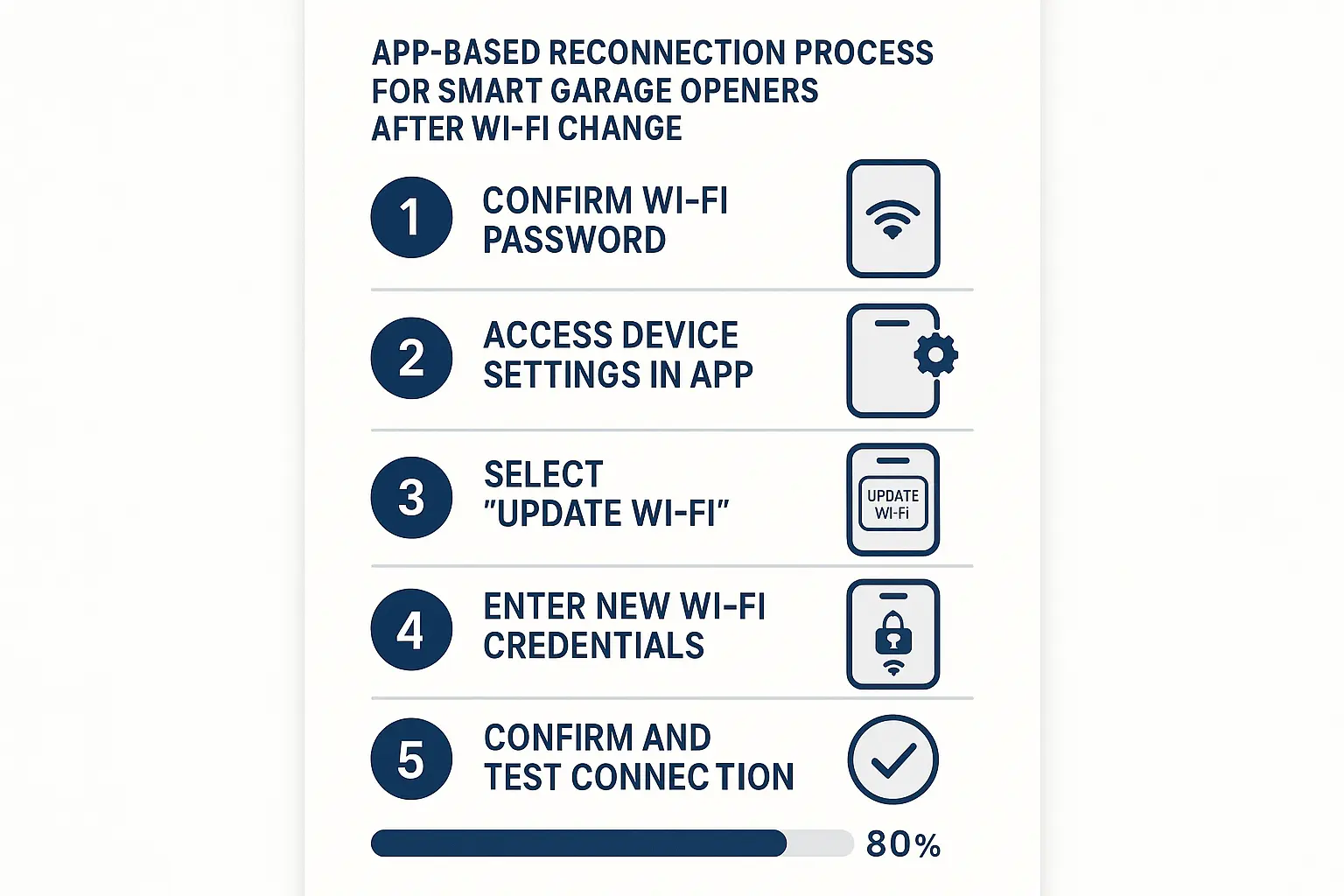
The 2-Minute App Method (Works for 80% of Users)


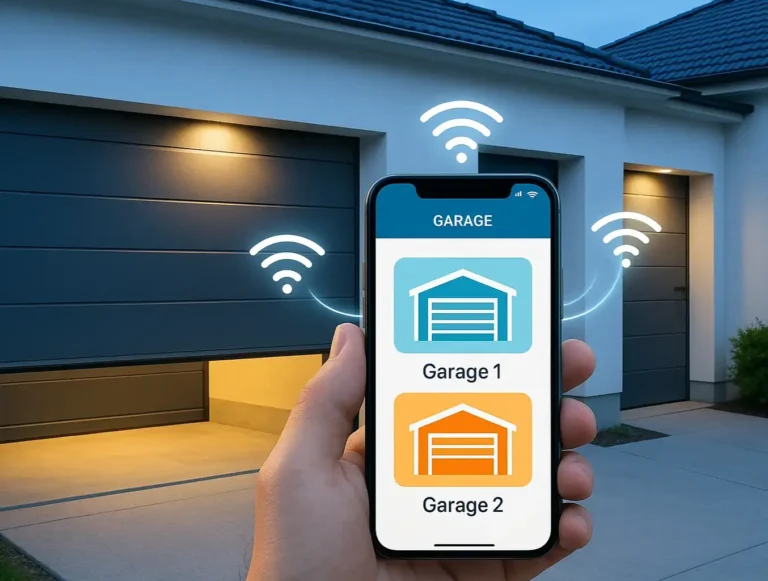
An easy-to-follow app reconnection process that works for most smart garage opener users, helping you get online swiftly and confidently.
For most people, this is all you’ll need to do. Manufacturers have designed their apps to make this process as painless as possible. While the exact menu names might differ slightly between brands like myQ, Aladdin Connect, or Ryobi, the principle is the same.
Here’s the general process:
What Success Looks Like: ✅ The LED light on your opener should change from blinking to solid (usually blue or green). Your app will confirm the connection is successful. That’s it! You’ve re-established the connection and helped make my garage door smart again.

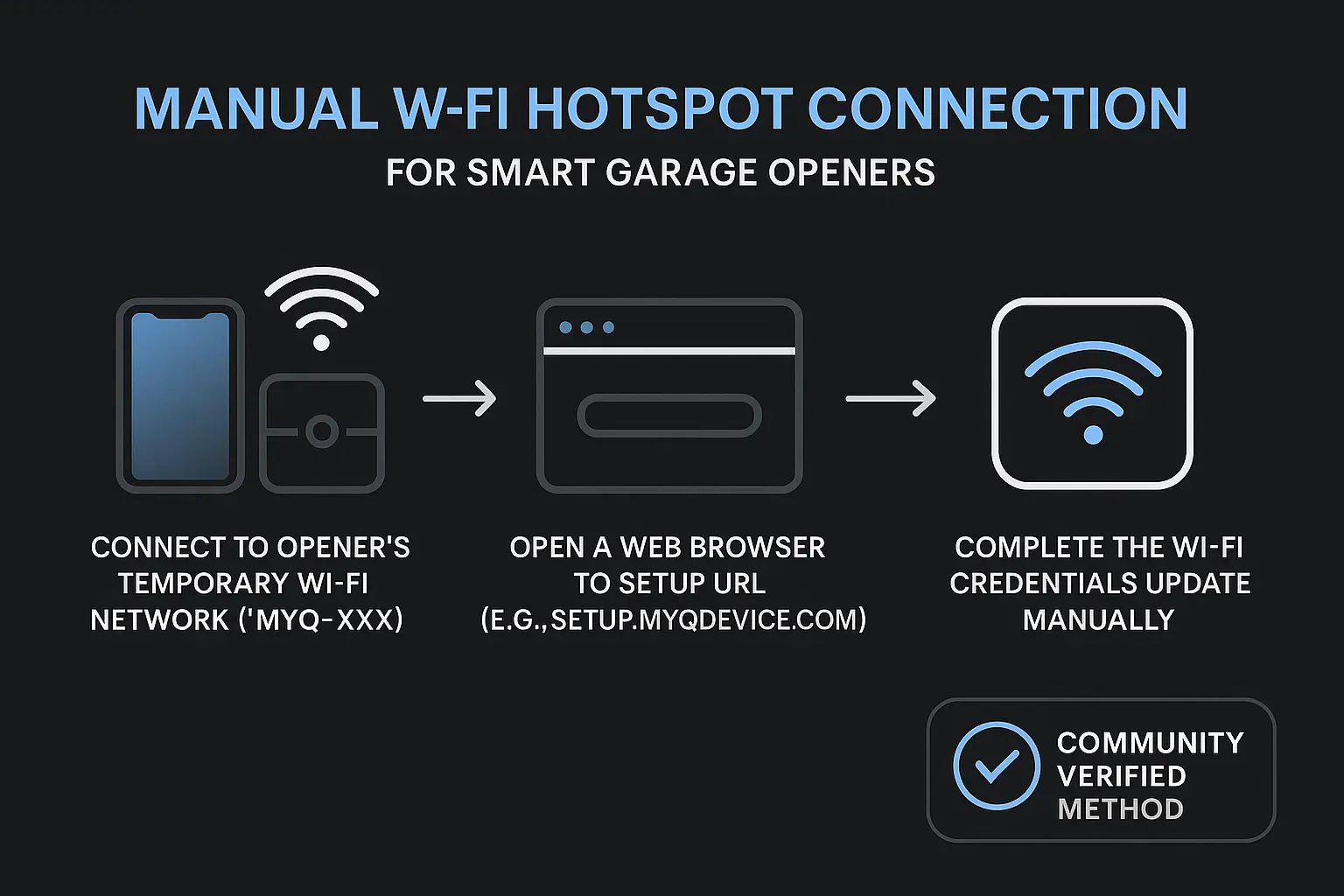
When the App Fails: The Manual Reconnect Method


A trusted manual Wi-Fi setup process for when app reconnection fails, offering a reliable alternative to keep your garage opener connected.
Sometimes, the app just won’t cooperate. It might not find your Wi-Fi network, or it may time out repeatedly. This is where most people get stuck, but there’s a fantastic workaround that almost always succeeds.

This “secret” method involves connecting your phone directly to a temporary Wi-Fi network broadcast by the garage door opener itself.
Here’s how to do it:

This process might seem more technical, but it’s a direct and reliable way to get things working. It’s important to note this is simply a Wi-Fi reset, not a full factory reset. If you’re ever unsure about the difference, learning how to reset a garage door opener properly can save you from accidentally erasing remotes and keypads.

A Visual Guide to Finding Your Opener's "Learn" Button


The most critical physical step in this process is pressing the “Learn” or “Program” button. But where is it? Its location and color can vary by brand and model, but they are almost always on the motor unit hanging from your ceiling.
If you’re ever struggling to locate it, our detailed guide on where is the learn button on garage door opener models can provide more specific visuals.

Still Stuck? Your Ultimate Troubleshooting Checklist


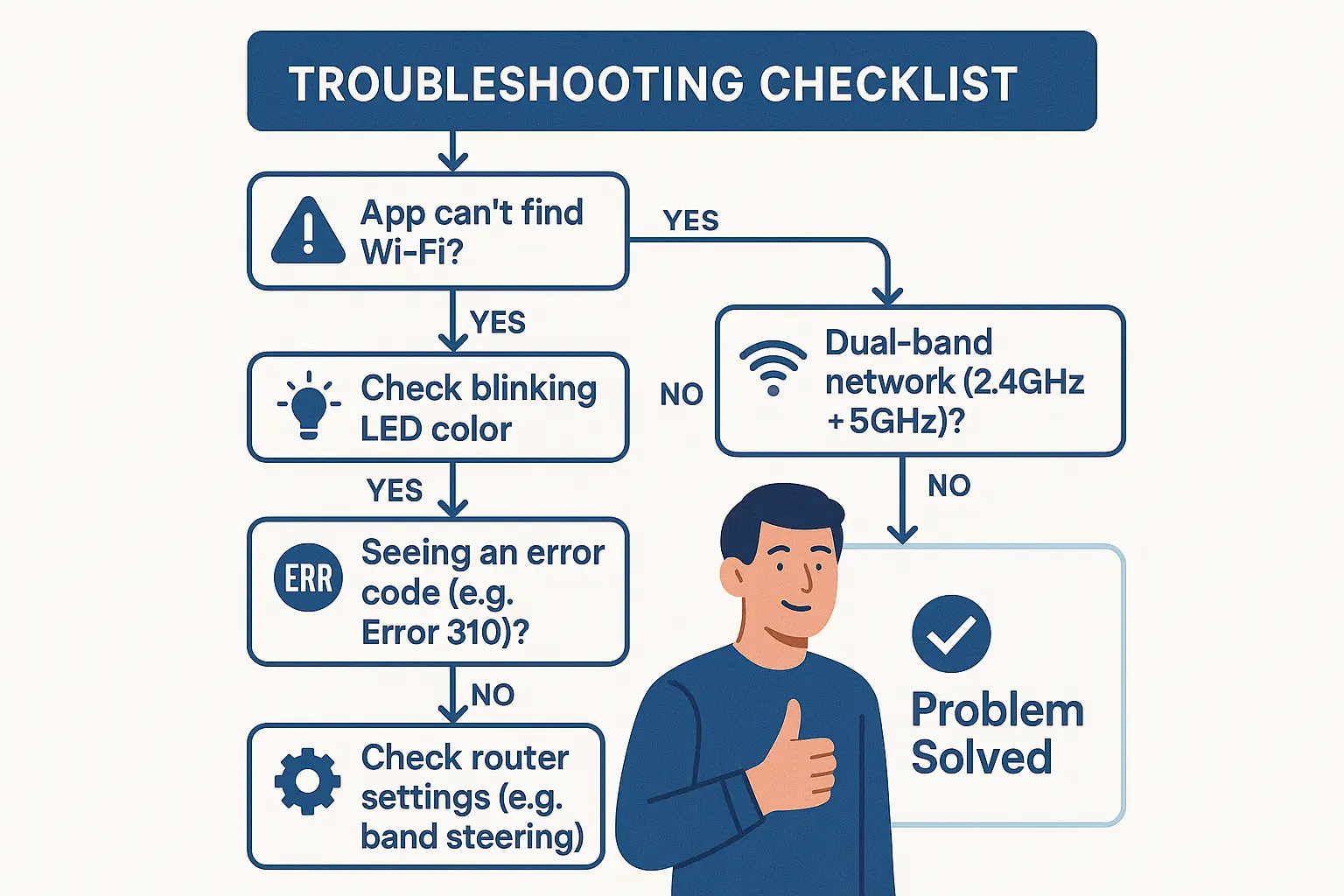
A step-by-step troubleshooting flowchart to resolve common Wi-Fi reconnection problems, helping you overcome hurdles and reconnect with confidence.
If you’ve tried both methods and your opener still won’t connect, don’t worry. The issue is likely a simple setting. Go through this checklist to diagnose the problem.

Is your Wi-Fi signal strong enough in the garage?

Sometimes a new router’s placement results in a weaker signal. Stand in your garage with your phone and check how many Wi-Fi bars you have. If it’s only one or two, you may need a Wi-Fi extender.

Are you sure you’re using the 2.4 GHz network?

This is the #1 cause of failure. If your router uses “band steering” (one network name for both 2.4 GHz and 5 GHz), your phone might be on the 5 GHz band, preventing the app from seeing the right network. Try temporarily disabling the 5 GHz band in your router’s settings during setup.

Did you type the password correctly?

Double-check for typos and case sensitivity. It’s an easy mistake to make.

Is there a firewall or parental control blocking the device?

Some advanced router settings can prevent new devices from joining the network. Check your router’s app or admin panel to ensure the garage opener isn’t being blocked.

Have you tried a quick power cycle?

The classic “turn it off and on again” works wonders. Unplug your garage door opener from the ceiling outlet, wait 30 seconds, and plug it back in. Then, try the setup process again.

If your device is online but still not working correctly, it might be a mechanical or electrical issue. Our general guide can help you fix garage door opener problems beyond connectivity.

FAQ: Your Top Questions About Reconnecting Your Garage Opener


Will I have to reprogram my remotes and keypad after reconnecting to Wi-Fi?

No. Resetting the Wi-Fi is a separate function from clearing the opener’s memory. Your existing remotes, keypads, and travel limits will not be affected.

Why can’t my garage opener just use the 5 GHz Wi-Fi band?

The 2.4 GHz band, while sometimes slower, has a much longer range and is better at penetrating walls and other obstructions—like the ones between your router and your garage. For a low-data device like a garage opener, range and reliability are more important than speed.

The app is giving me an error code. What does it mean?

Error codes are manufacturer-specific. A quick search for your brand and the error number (e.g., “myQ error 310”) will usually lead you to a support page explaining the specific issue. It often relates to a weak signal or incorrect password.

Can I still use my regular remote if the Wi-Fi is down?

Absolutely. Your physical remotes and wall-mounted button communicate directly with the opener via radio frequency and do not depend on Wi-Fi. It’s also a good reminder to know how to program a universal remote as a reliable backup.

Reconnecting your smart garage door opener is a manageable task that puts the convenience back in your hands. By following these steps, you can get your system back online and enjoy the security and ease of a fully connected smart home.

Frequently Asked Questions


Will I have to reprogram my remotes and keypad after reconnecting to Wi-Fi?

No. Resetting the Wi-Fi is a separate function from clearing the opener's memory. Your existing remotes, keypads, and travel limits will not be affected.

Why can't my garage opener just use the 5 GHz Wi-Fi band?

The 2.4 GHz band, while sometimes slower, has a much longer range and is better at penetrating walls and other obstructions—like the ones between your router and your garage. For a low-data device like a garage opener, range and reliability are more important than speed.

The app is giving me an error code. What does it mean?

Error codes are manufacturer-specific. A quick search for your brand and the error number (e.g., "myQ error 310") will usually lead you to a support page explaining the specific issue. It often relates to a weak signal or incorrect password.

Can I still use my regular remote if the Wi-Fi is down?

Absolutely. Your physical remotes and wall-mounted button communicate directly with the opener via radio frequency and do not depend on Wi-Fi. It's also a good reminder to know how to program a universal remote as a reliable backup.

Contact / Request a Call