Network Setup Checklist for Smart Garage Systems


Published: Jun 12, 2026 | Updated: Jul 28, 2026

You’ve got the box. You’re excited about the convenience of opening your garage from anywhere and getting delivery notifications. You set aside an hour for what should be a straightforward installation. But then it happens: the dreaded “Connection Failed” error. The blinking lights mock you. The app won’t find the device. An hour of excitement turns into an evening of frustration.

Sound familiar? It’s a surprisingly common story. Most setup failures for smart garage openers have nothing to do with a faulty device. They stem from a home Wi-Fi network that wasn’t quite ready for its new job.

This is the 5-minute pre-flight check that can save you that hour of frustration. Before you even open the box, let’s walk through a few simple steps to ensure your network is perfectly prepared, making your installation a breeze.
Foundation: Your Garage Opener's Three Simple Wi-Fi Needs


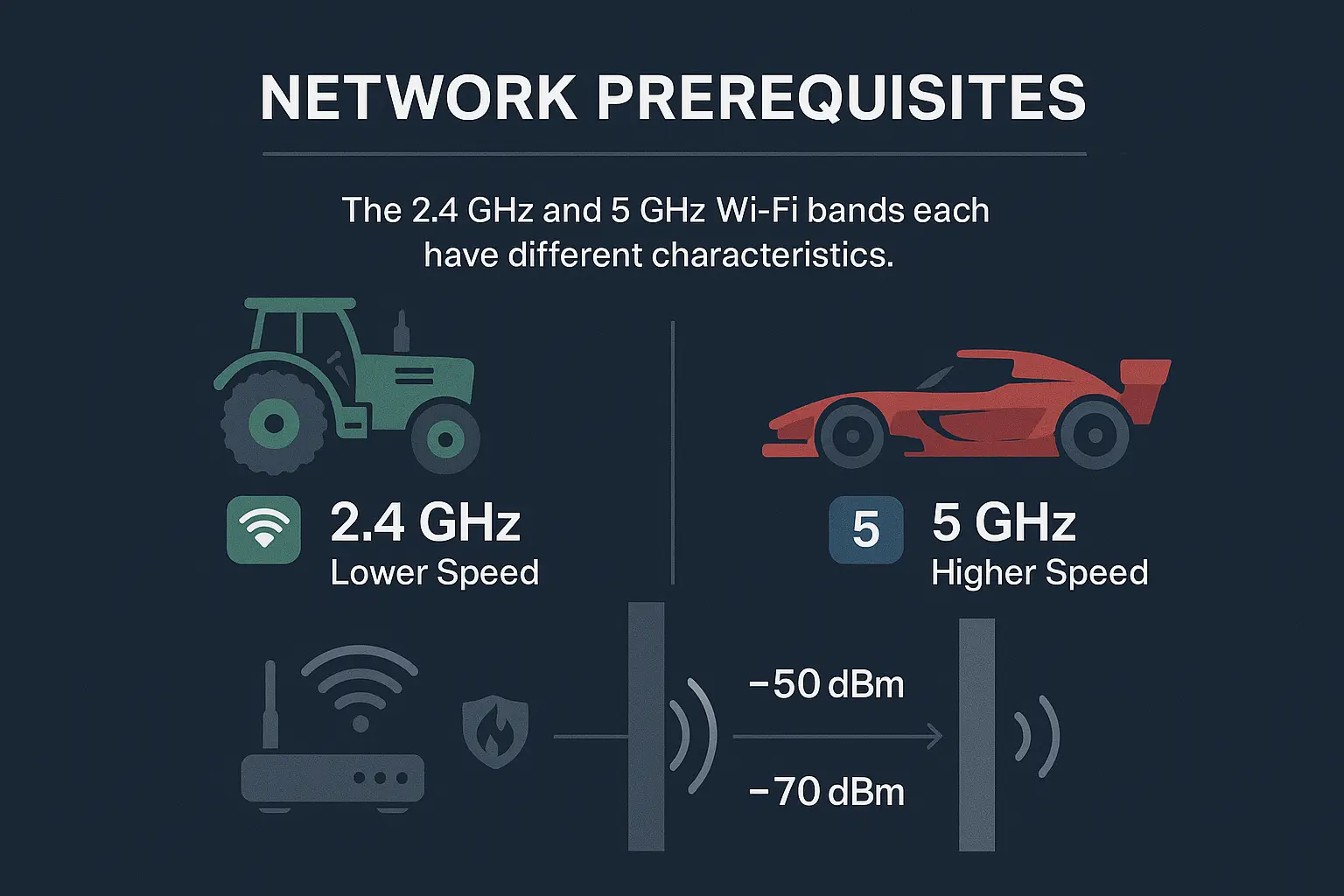
A graphic illustrating the differences between 2.4 GHz and 5 GHz Wi-Fi bands, showing 2.4 GHz with longer range and better wall penetration, and 5 GHz with higher speed but shorter range.
Think of your new smart opener like a new employee starting a job. To be successful, it needs three things from you: a clear line of communication, instructions in a language it understands, and permission to access the building. In network terms, this translates to:
Let’s break down the most important one: the “right kind” of Wi-Fi. Your router likely broadcasts two networks, or “bands”: 2.4 GHz and 5 GHz. This is where most people get tripped up.

Here’s an “aha moment” that makes it simple:

Because reliability and range are more important than raw speed, nearly all smart home devices, including your garage opener, are designed to work exclusively on the 2.4 GHz band.

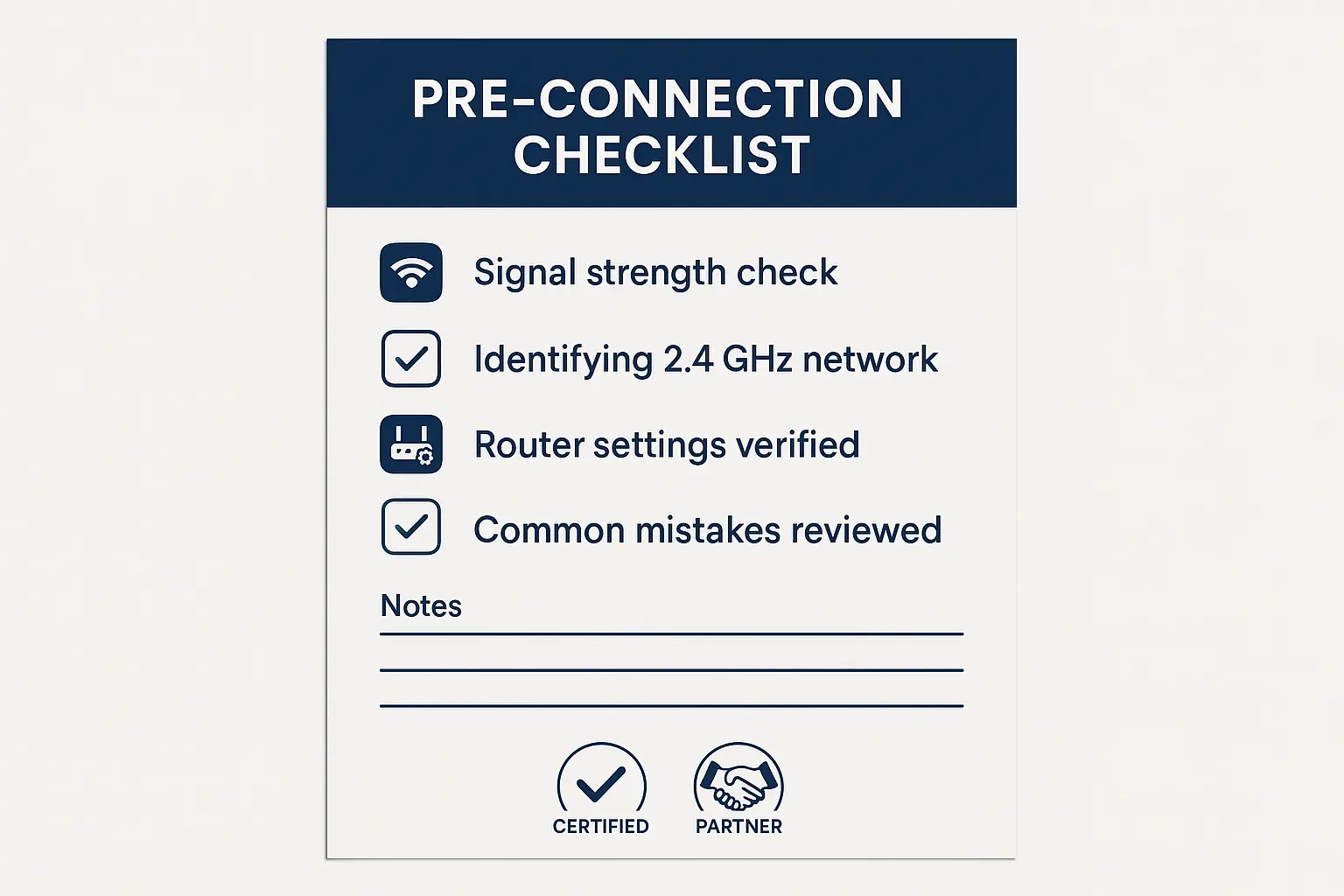
Building: Your 2-Step Pre-Connection Checklist


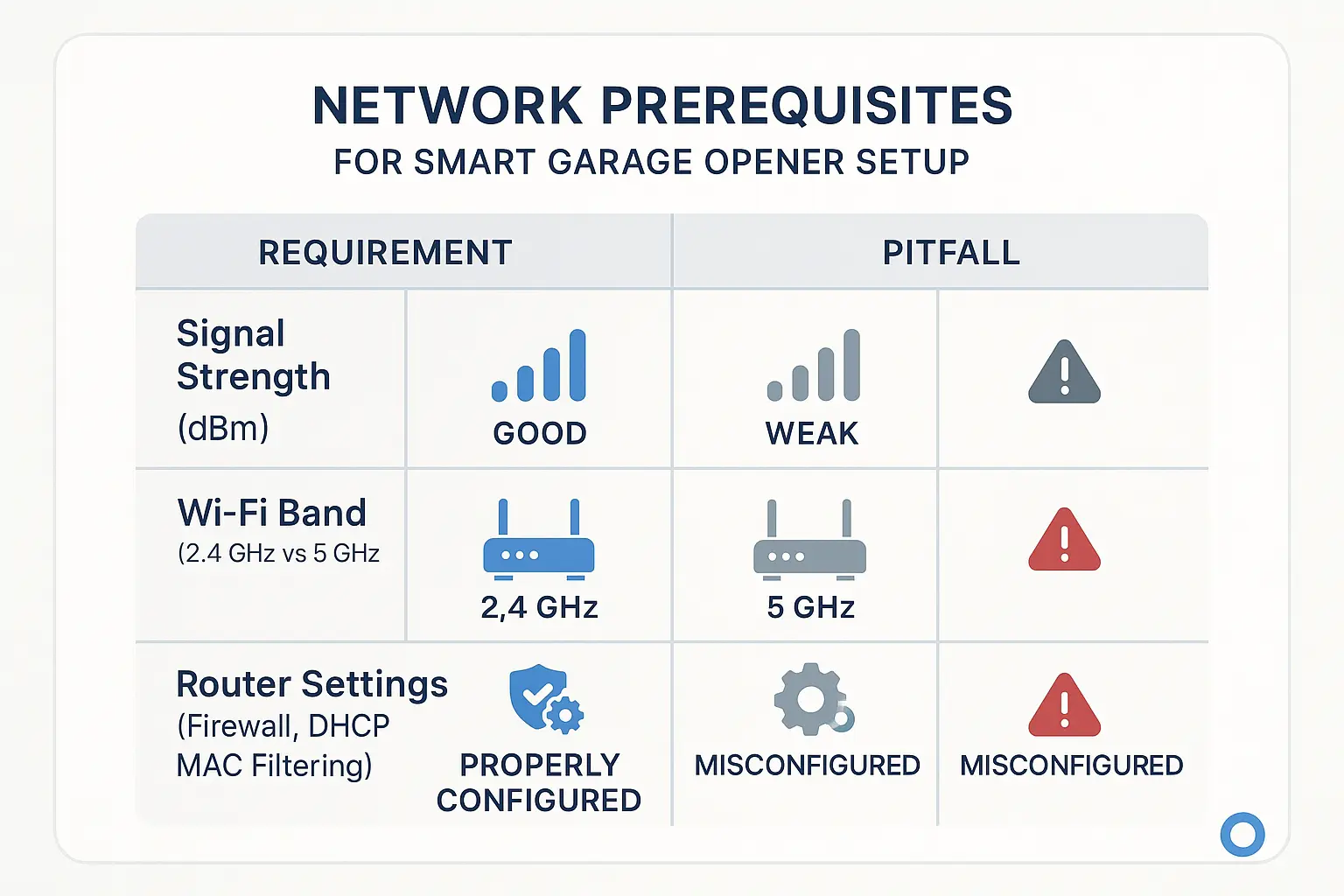
A checklist graphic showing three key areas to check for smart garage opener setup: Wi-Fi Signal Strength (showing a strong signal icon), Wi-Fi Band (highlighting 2.4 GHz), and Router Settings (showing a settings gear icon).
Ready to get your network in shape? Follow these three simple checkpoints.

Check Point 1: Measure Your Wi-Fi Signal Strength (The Right Way)

“Have a strong signal” is vague advice. Let’s make it measurable. Wi-Fi strength is measured in decibel-milliwatts (dBm), which you’ll see as a negative number (e.g., -55 dBm). The closer the number is to zero, the stronger the signal.

How to Measure:
If your signal is -67 dBm or stronger, you’re good to go! If it’s weaker, you may need to look into ways to boost your garage door opener range before you begin.

Check Point 2: Identify Your 2.4 GHz Network

Look at the list of available Wi-Fi networks on your phone. You’ll likely see one of two things:

Mastery: Solving Problems Before They Happen


A flowchart showing a decision-making process for troubleshooting smart garage opener network issues. It starts with checking signal strength, then checking the Wi-Fi band, and finally router settings, with clear solutions for each potential problem.
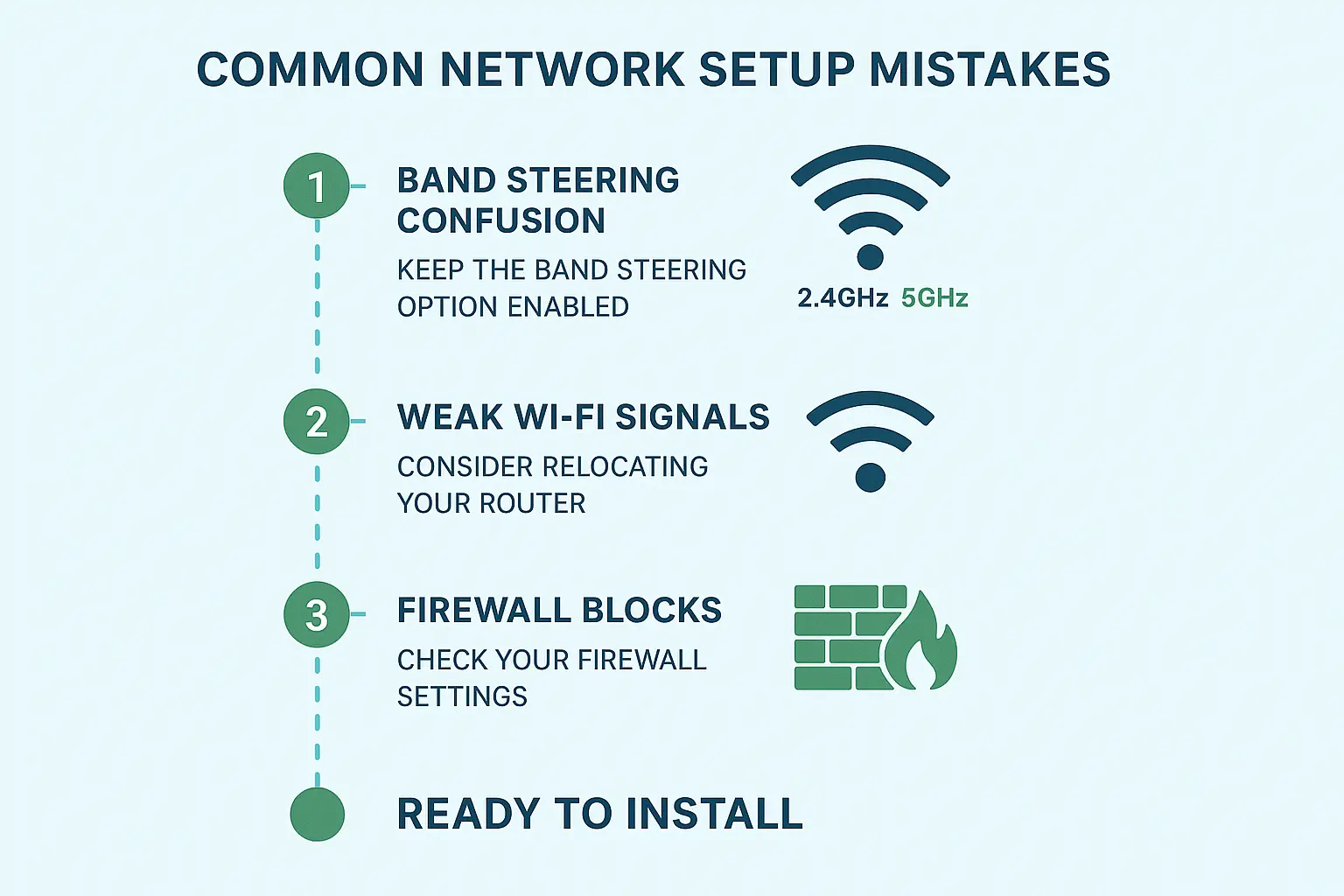
By running through the checklist, you’ve likely already spotted any potential issues. Here’s a quick guide on how to solve the most common ones before they can cause a problem.

Problem: My Wi-Fi signal is weaker than -67 dBm.

Easy Fix: Try moving your router to a more central location in your home, away from thick walls or large metal objects (like a refrigerator). Even moving it a few feet can make a difference.

Better Fix: Install a Wi-Fi extender or a mesh Wi-Fi node in a room closer to the garage. This is the most effective way to ensure a strong, stable signal. Understanding the advantages of Wi-Fi-enabled garage door openers often starts with ensuring your network is robust enough to support them.

Problem: My 2.4 GHz and 5 GHz networks have the same name.

Easy Fix: As mentioned, log into your router and create a dedicated 2.4 GHz “Guest Network” just for the setup process. You can name it “GarageSetup” to make it obvious. Connect your phone and the opener to this network. You can disable it after setup is complete.

Problem: A firewall or parental control is blocking the connection.

Easy Fix: Most firewalls won’t block a new device, but some with high-security settings might. If you suspect this is an issue, you can temporarily lower the firewall security level during the 5-minute setup process and then raise it back up immediately after.

If you’ve run through these checks and still encounter issues, it’s possible the problem lies with the opener itself. For those situations, a quick troubleshooting guide can help you diagnose hardware-specific issues.

Action: You're Cleared for Connection!


A final, clean checklist graphic summarizing the key steps: Check Signal Strength (> -67 dBm), Identify 2.4 GHz Network, Verify Router Settings (DHCP On, MAC Filtering Off), and a final checkmark for "Ready to Connect!".
You’ve done the prep work. Your network is ready, and you can now proceed with confidence. Grab this final checklist and get started.

By taking these few extra minutes to prepare, you’ve turned a potential point of frustration into a smooth and successful setup. And if you decide you’d rather leave the setup to the pros, a professional garage door opener installation service can ensure everything is configured perfectly from day one.

FAQ: Your Smart Garage Network Questions Answered


Why do smart garage openers use 2.4 GHz instead of the faster 5 GHz?

It’s all about range and reliability. The 2.4 GHz frequency is much better at traveling through walls, floors, and other obstructions between your router and garage, ensuring a more stable connection than the shorter-range 5 GHz band.

What’s a good Wi-Fi signal strength for my garage?

Aim for a signal of -67 dBm or stronger (meaning closer to zero, like -60 or -55 dBm). You can measure this accurately using a free Wi-Fi analyzer app on your smartphone right at the installation spot.

My Wi-Fi signal is weak in the garage. What’s the easiest fix?

The simplest first step is to try relocating your router to a more central spot in your house. If that doesn’t work, the most reliable solution is to purchase a Wi-Fi extender or a mesh system node and place it in an outlet closer to the garage.

Will a smart garage opener slow down my internet?

No. Smart garage openers use a tiny amount of data. They only communicate when you actively use the app or when a status changes (open/closed). This has a negligible impact on your network performance, so your streaming and browsing will be unaffected.

What if I follow all these steps and it still won’t connect?

If your network is confirmed to be ready, the next step is to check the device itself. Ensure you’re entering the Wi-Fi password correctly (it’s a common mistake!). If that fails, the issue might be with the opener’s hardware or the remote. Learning how to fix a garage door remote can sometimes solve related pairing problems. For more advanced options, it’s worth exploring the top smart garage door accessories that might enhance your setup.

Frequently Asked Questions


Why do smart garage openers use 2.4 GHz instead of the faster 5 GHz?

It's all about range and reliability. The 2.4 GHz frequency is much better at traveling through walls, floors, and other obstructions between your router and garage, ensuring a more stable connection than the shorter-range 5 GHz band.

What's a good Wi-Fi signal strength for my garage?

Aim for a signal of -67 dBm or stronger (meaning closer to zero, like -60 or -55 dBm). You can measure this accurately using a free Wi-Fi analyzer app on your smartphone right at the installation spot.

My Wi-Fi signal is weak in the garage. What's the easiest fix?

The simplest first step is to try relocating your router to a more central spot in your house. If that doesn't work, the most reliable solution is to purchase a Wi-Fi extender or a mesh system node and place it in an outlet closer to the garage.

Will a smart garage opener slow down my internet?

No. Smart garage openers use a tiny amount of data. They only communicate when you actively use the app or when a status changes (open/closed). This has a negligible impact on your network performance, so your streaming and browsing will be unaffected.

What if I follow all these steps and it still won't connect?

If your network is confirmed to be ready, the next step is to check the device itself. Ensure you're entering the Wi-Fi password correctly (it's a common mistake!). If that fails, the issue might be with the opener's hardware or the remote. Learning how to fix a garage door remote can sometimes solve related pairing problems. For more advanced options, it's worth exploring the top smart garage door accessories that might enhance your setup.

Contact / Request a Call